Open a Windows drive
Read documents and photos from a BitLocker NTFS drive connected to your Mac.
Yes, your Mac can open a BitLocker-encrypted drive. DiskBee unlocks it with your password or 48-digit recovery key so you can browse, copy out, or work with files in Pro.
Read documents and photos from a BitLocker NTFS drive connected to your Mac.
Open encrypted USB flash drives and portable exFAT or FAT32 media on macOS.
Copy files out for free, or edit and save directly to the drive with Pro.
Attach the BitLocker drive to your Mac and select it in DiskBee.
Enter your password or the 48-digit recovery key. Optionally save it to Keychain for automatic unlocking, or explicitly choose read-only access.
Browse and copy files out with Free, or use Pro for complete read-write access.
Open NTFS, exFAT and FAT32 drives, including encrypted removable media created with BitLocker To Go.
Supports XTS-AES 128/256 and AES-CBC volumes created by different Windows versions.
Pro encrypts writes in real time to the BitLocker standard, so saved data remains usable when the drive returns to Windows.
Store your credentials in macOS Keychain if you want automatic unlocking on your own Mac.
Choose read-only access when you only need to inspect or copy files and want to prevent changes.
With Pro, add, edit, move and delete files directly on an unlocked BitLocker drive.
Free provides unlimited-time read-only browsing and copying. Pro adds full read-write access; both versions require valid drive credentials.
| Capability | Free | Pro |
|---|---|---|
| Open with valid credentials | Included | Included |
| Browse and copy files out | Unlimited time | Unlimited time |
| Add, edit and delete files | Read-only | Full read-write |
| Keychain and read-only option | Included | Included |
Pro in the website download edition includes four additional management panels. The Mac App Store edition does not include these panels, while Free and Pro unlocking and read-write capabilities are identical in both editions.
| Pro management capability | Website download | Mac App Store |
|---|---|---|
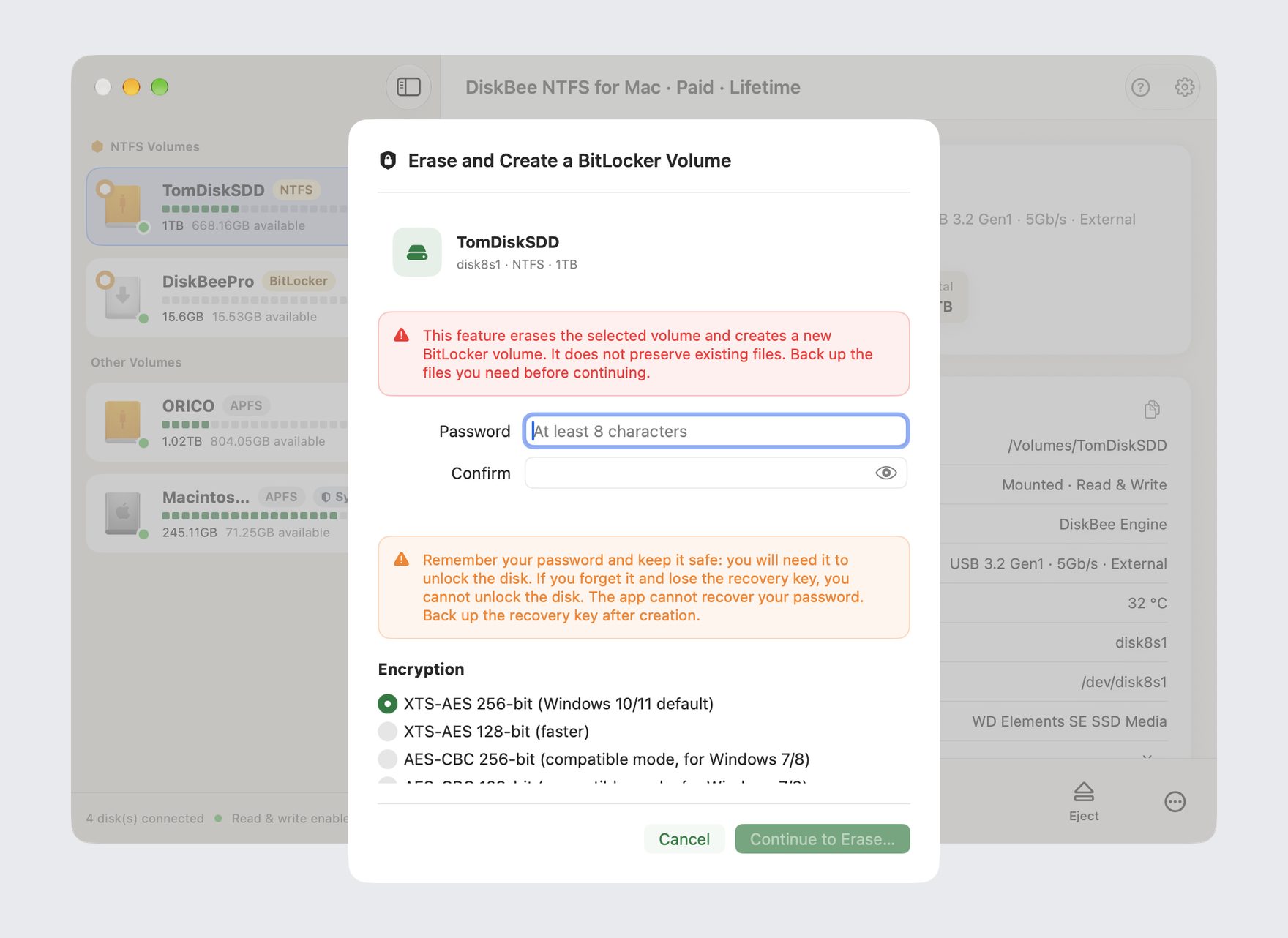
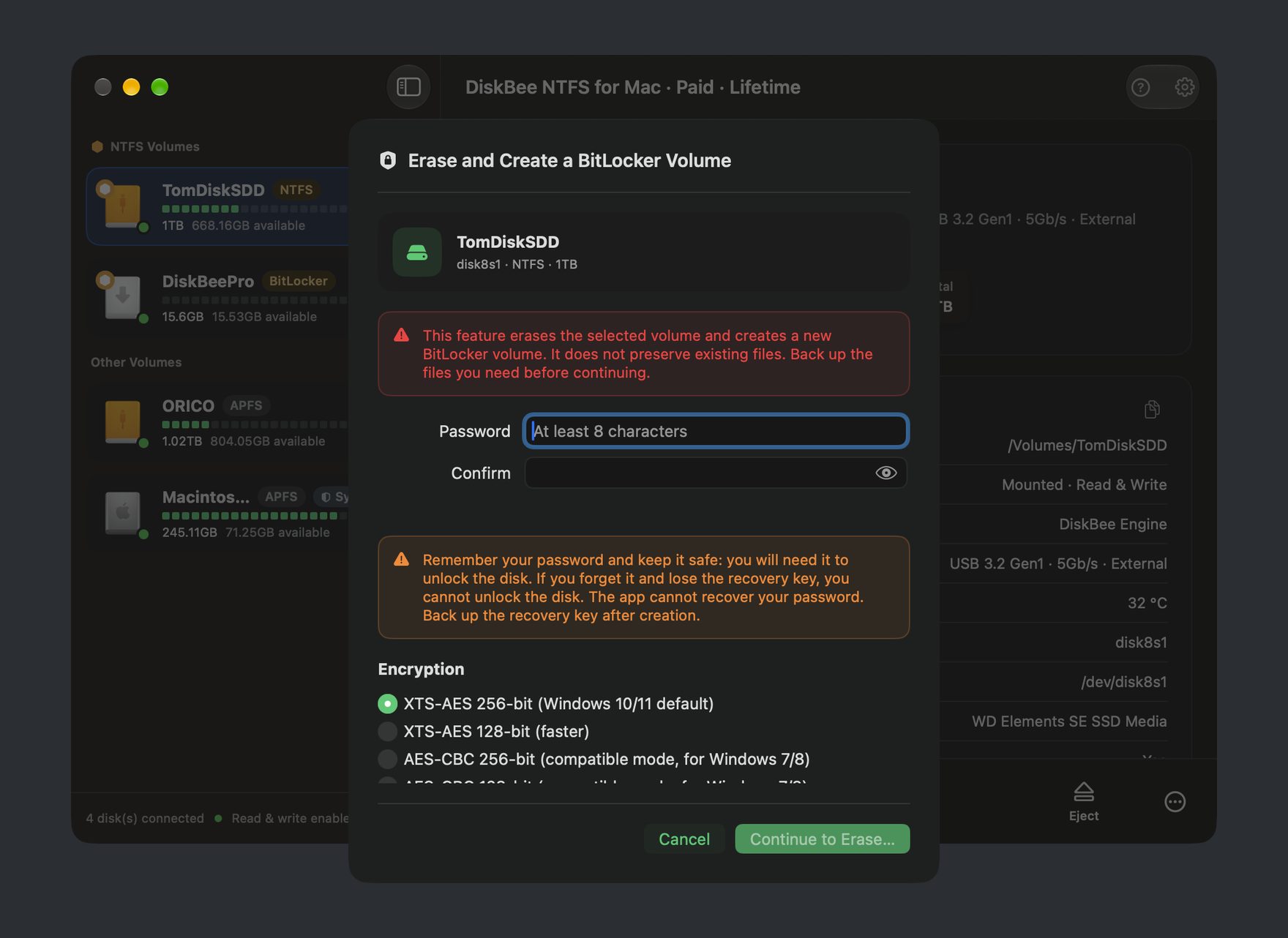
| Erase and rebuild an NTFS BitLocker volume | Included | Not included |
| Encrypt an NTFS drive in place and keep data | Included | Not included |
| Turn off BitLocker and decrypt in place | Included | Not included |
| Change the password | Included | Not included |
Yes. Connect the drive and unlock it in DiskBee with its valid password or 48-digit recovery key. You can then browse and copy files on your Mac.
Select the connected drive in DiskBee, enter the password or 48-digit recovery key, and choose your access mode. Keychain can enable automatic unlocking; you can also explicitly select read-only mode.
Free offers unlimited-time read-only browsing and copying. Pro provides complete read-write access for adding, editing, moving and deleting files. Both require valid credentials.
DiskBee supports BitLocker NTFS drives and BitLocker To Go FAT32 or exFAT media, using XTS-AES 128/256 or AES-CBC. Pro encrypts writes in real time to the BitLocker standard, so the drive remains usable in Windows.
Pro in the website download edition can erase and rebuild an NTFS BitLocker volume, encrypt an NTFS drive in place while preserving data, turn off BitLocker through in-place decryption, and change the password. In-place encryption is NTFS-only.
The website download edition includes the four Pro management panels. The Mac App Store edition omits those panels, but its Free and Pro unlocking, browsing, copying and read-write capabilities are the same.
DiskBee requires macOS 15.4 or later and supports Apple Silicon M1 through M6 as well as Intel Macs.
Yes, standards-compliant encrypted writes remain usable in Windows. DiskBee opens supported volumes created by Windows 7 or later, whether encrypted fully or with used-space-only mode. TPM-only volumes with no password or recovery key are unsupported, and converting volumes stay read-only or reject writes.
Download DiskBee to browse and copy encrypted files for free, with full read-write access available in Pro when you need it.